


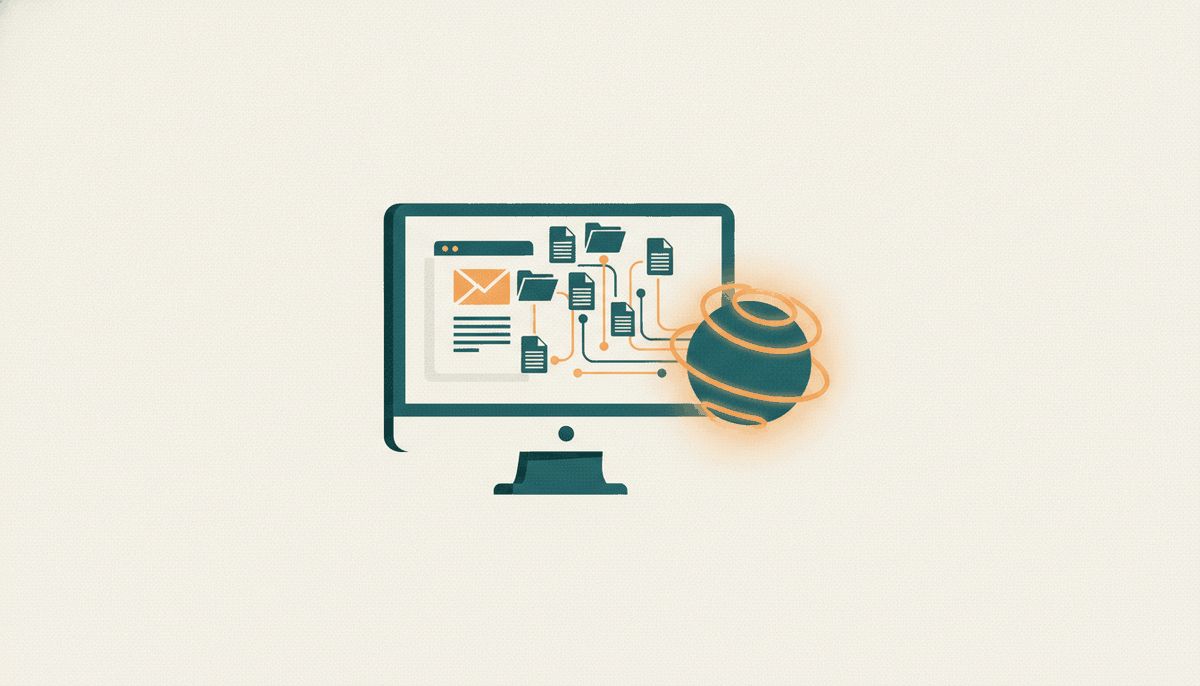
You're out and need a file that's sitting on your home computer. Or the office PC is "acting weird, slow" and you'd like to take a look without going back. Or you just wish someone would handle that tedious task — find the report, check the disk space, grab a screenshot — while you do something else.
Until now, that meant remote-access software, VPNs, network setup. With César, it means one sentence:
"Check if the August report is in the Documents folder on my PC"
And César goes and checks. On your actual computer, the one on your desk — while you ask from your phone, your browser, or WhatsApp.
How it works: install, pair, done
- Download César's agent for Windows — a lightweight executable with César's look;
- Open it, and it shows a short code;
- Paste the code into the chat. Done: the machine appears on your account, with a name and an online status.
The agent sits quietly in the system tray — no window, no nagging. It opens no port on your router and needs no network configuration: it's the one that connects out to César, over a secure outbound channel — the same kind of connection your browser makes. There is no path from the outside into your machine; the only path runs through your authenticated account.
What you can ask for
With the machine connected, your computer becomes one more thing you can just talk about:
- Find and read files — "look for the renovation contract in my Documents," "show me the last lines of that log";
- See the screen — "take a screenshot of my PC" and the capture appears in the chat, so you can see what's going on there;
- Diagnose — "how much free disk space is left?", "which programs are eating memory?";
- Run tasks — tidy up a folder, copy files, run that command whose syntax you never remember.
Quick commands answer instantly. Longer task? César kicks it off, frees up the chat, and pings you when it's done — with a "César is using your PC" pill visible the whole time, including a stop button. You are never in the dark about what's happening on your machine.
And your disk also shows up in César's Files panel, so you can browse its folders the way you browse your Drive.
Security first — for real, not in a footnote
Giving an AI access to your computer takes trust, and trust is built with architecture, not promises. That's why:
- The default is read-only. Freshly connected, a machine only answers questions. Writing, moving, changing — none of it works until you enable write access, per machine, in an explicit decision.
- The irreversible is always refused. Even with write access on, the agent blocks destructive commands by construction — formatting, mass deletion, disabling protections. The permission you granted was to work, not to destroy, and that line is non-negotiable.
- Everything visible, everything audited. Every command is logged — on the server and in a local log on your machine. The live pill shows when César acts, and the stop button cuts it off instantly.
- Revocable in one click. On the Machines screen, you disconnect any computer and the session dies within minutes. Each machine is a single row on your account, with its own cryptographic key that never leaves your PC.
Quiet at rest, visible in action — that's the contract.
Two, three machines? All of them
Home and work? Connect both. Each machine shows up with its own name, online or offline, and you choose which one to ask: "on my home PC, look for...". The Machines screen lists them all, with each one's status and permissions.
An assistant that reaches the physical side of your work
This is what separates César from a chatbot: it doesn't just know things — it reaches your things. The same assistant that reads your bills, edits your videos and builds your apps now reaches your computer. From anywhere, through a conversation.
Getting started
- Create your free account;
- Say in the chat: "I want to connect my computer" — César hands you the download link and the code;
- Two minutes later, ask anything about your machine — from wherever you are.
Your computer finally learned to pick up when you're away.